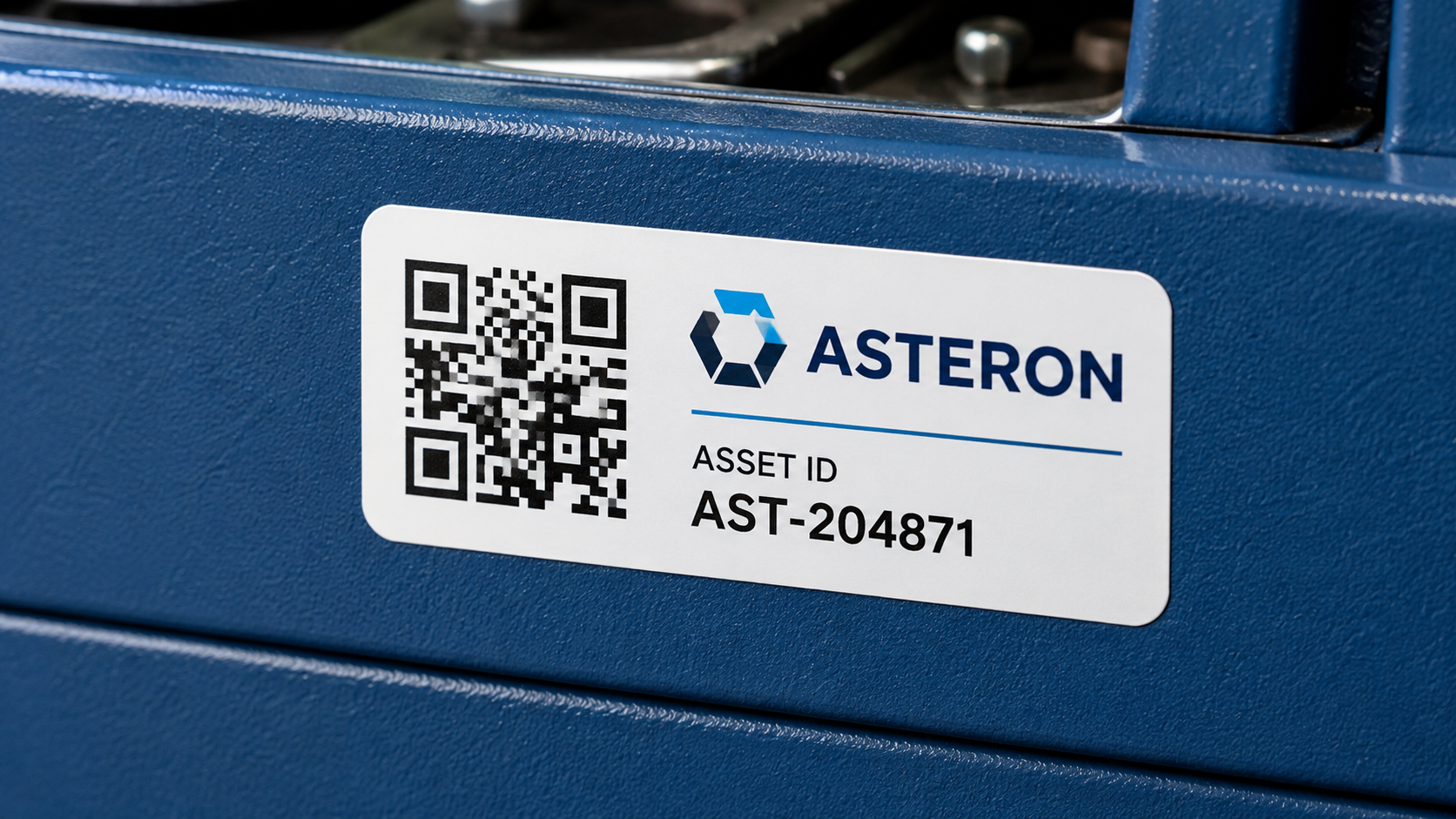
A QR code asset tag is a small label that gives a physical item a digital record.
You stick it on a tool, laptop, camera, kit, shelf or piece of equipment. Someone scans it with a phone. The scan opens the item record, so your team can see what it is, where it belongs, who has it, and what happened to it.
That sounds simple. It is. But the details matter. A QR label is only useful if people can scan it, the asset ID makes sense, the label survives real use, and the team has a habit after the scan: update the holder, location, condition or stock movement.
This guide shows how to use QR code asset tags properly: what to tag first, how to name assets, where to place labels, and what mistakes to avoid.
What is a QR code asset tag?
A QR code asset tag is a physical label with a unique QR code printed on it. The QR code usually points to a digital asset record with details like item name, asset ID, photo, category, location, current holder, serial number, condition, notes and scan history.
For example, a drill might have a label that says TOOL-018 under the QR code. When someone scans the tag, they open the drill's record and can see whether it is in the tool room, on Van 2, at a job site, or checked out to a technician.
That is the point of asset tagging. The label connects the real item to the system that tracks it. If you already understand scanning workflows, see how a barcode inventory system works. This article focuses on the labels themselves.
What should you tag first?
Do not label every single object on day one. Start with the items people waste time looking for. If the item goes missing, gets borrowed often, or costs money to replace, it is a good candidate for a QR asset tag.
- Power tools, hand tools, ladders, test equipment and jobsite gear.
- Laptops, tablets, cameras, projectors, AV kits and IT devices.
- Toolboxes, reusable bins, storage shelves, equipment cases and maintenance equipment.
Tag the items that create a problem when nobody knows where they are. Price matters, but so does daily friction.
For tools, QR asset tags work especially well when paired with a way to track tools with QR codes. For laptops, monitors and phones, QR labels can support IT asset tracking by giving every device a unique record.
QR code vs barcode vs RFID
QR codes, barcodes and RFID tags can all identify assets. They do not solve the same problem in the same way.
| Tag type | Best fit | Why teams use it |
|---|---|---|
| QR codes | Tools, equipment and shared assets | Easy to scan with phones, can open a digital record, and do not require dedicated hardware. |
| Barcodes | SKUs, stock items and high-volume counts | Good for simple IDs, existing product codes and fast repeated scanning. |
| RFID | Large-scale or high-volume environments | Can read without direct line of sight, but usually needs extra readers, tags and setup. |
For most small teams, QR code asset tags are the easiest place to start. They are cheap to print, easy to understand, and work with phones. You can create QR codes and barcodes with HomyScan's free barcode generator, then scan them with your team.
Create a simple asset ID system
A QR code should not be the only thing on the label. Print a human-readable asset ID under the code. If the label is scratched, the phone camera fails, or someone sends a photo of the item, the ID still works.
Good asset IDs are short and consistent:
- TOOL-001, TOOL-002 for tools.
- LAP-014 for laptops.
- CAM-006 for cameras.
- KIT-003 for kits.
- LAD-011 for ladders.
Keep the system boring. Boring is good here. Avoid IDs like "John's drill," "Camera 1 maybe," or "Box near back door." Those names may make sense today, but they will not make sense in six months.
Where to place QR code asset tags
Label placement matters more than people think. A perfect QR code in the wrong place becomes useless. It gets rubbed off, covered by dirt, hidden under a handle, scratched by a case, or placed where nobody can scan it.
Put the label on a flat surface
Flat surfaces scan better. Curved surfaces can distort the code, especially on small labels. Good places include the side of a toolbox, laptop base, camera case, hard case top, bin side, shelf edge, or a visible handle base that does not get rubbed.
Avoid grip areas, corners that get hit, hot surfaces, oily or dusty spots, moving parts, and places covered when the item is stored.
Keep the scan point visible
The person scanning the asset should not need to open three bags or flip the item around five times. If the item lives in a case, label the case too.
For kits, use one QR code for the full kit, separate QR codes for expensive components, and a printed contents list inside the case. The kit can move as one item while valuable pieces still have their own records.
Avoid high-friction areas
Tools get thrown in vans. Laptops slide into bags. Cables rub against labels. Ladders scrape walls. Put the tag where hands and surfaces do not constantly rub it. For rough outdoor use, consider laminated labels, durable labels or metal tags once the workflow proves useful.
What to put in the asset record
The label is only the doorway. The asset record is where the useful information lives. Start with fields your team will actually use.
- Item name, asset ID and photo
- Category, location and current holder
- Serial number, condition and notes
- Last scan date and movement history
- Assigned van or job site
- Maintenance notes and repair status
- Battery or charger included
- Return or checkout history
- Employee name and device model
- Serial number and warranty date
- Charger included
- Offboarding status
Do not create 40 fields because a competitor has 40 fields. Start with the fields that answer daily questions: where is it, who has it, is it ready to use, what is missing, and what happened last time?
Use QR tags for equipment checkout
QR asset tags become more useful when they are tied to a check-in/check-out workflow. Without checkout, a QR label only helps identify the item. With checkout, the scan updates the item's status.
- Scan the QR code.
- Assign the item to a person or location.
- Add a note if needed.
- Scan again when it comes back.
- Keep the movement history.
This is useful for tools, laptops, cameras, ladders, projectors, maintenance equipment and kits. If your team currently uses a sign-out sheet, this is the natural upgrade: scan equipment in and out instead of hoping the sheet is updated.
How to create QR code asset tags
Pick 20 to 50 items
Choose the items that cause the most confusion: disappearing tools, laptops that need owners, borrowed kits, shared equipment, and items that get bought twice because nobody can find them.
Create an asset ID for each item
Use a simple naming convention like TOOL-001, LAP-001, CAM-001 or KIT-001. If you already have a spreadsheet, you can import your spreadsheet instead of rebuilding the list by hand.
Generate the QR labels
Create labels with the QR code, asset ID, optional item name and optional company name. HomyScan's free barcode generator can create QR codes, barcodes and printable asset tags.
Print and test the labels
Before printing 500 labels, print a small batch. Check that a phone can scan the code, the asset ID is readable, the label fits the item, and the placement works in real conditions.
Attach the labels
Clean the surface first. Then place the tag where people naturally see it: away from grips, hinges, rubber feet, covered areas, dirt and constant rubbing.
Start scanning
A label is not the system. The system is the habit after the scan: update the location, check the item out, return it, add a condition note, confirm it is still there, or view the item record.
Common asset tagging mistakes
- Labeling too much on day one. Start with the items people actually need to track, learn from that, then expand.
- Using QR codes without readable IDs. Print the asset ID under the code so someone can still search for TOOL-018 if the QR code is damaged.
- Placing labels where they get destroyed. Avoid handles, edges, wheels, grips and hot surfaces.
- Making asset names too vague. "Dell Latitude 14 - LAP-014" is better than "Laptop."
- Not tracking accessories. A laptop without a charger, a camera kit without a battery, or a drill without a charger may not be ready to use.
- Forgetting locations. Use clear locations like Tool Room, Van 1, Warehouse, Office, Job Site, IT Closet, Maintenance Cart and Employee Home.
- No scan workflow. The value comes when the label is part of a workflow: scan, update, return, check, count or move.
QR code asset tags for different teams
| Team | What to tag | Questions it answers |
|---|---|---|
| Contractors and field teams | Tools, testers, ladders, power tools, kits and van equipment. | Which van has it? Which technician took it? Did it come back from the job? |
| IT teams | Laptops, monitors, phones, tablets, docks and chargers. | Which employee has this device? Was the charger returned? What needs to be collected during offboarding? |
| Maintenance teams | Meters, pumps, ladders, stockroom bins, carts and spare equipment. | Is it in the stockroom or on a cart? Who used it last? Does it need repair? |
| Schools and nonprofits | Cameras, tablets, projectors, sports gear, AV equipment and shared supplies. | Which class borrowed it? Is it available? Was it returned with all accessories? |
| Offices | Projectors, adapters, conference gear, badge printers and shared laptops. | Is it in the meeting room? Who borrowed it last? Why is the same adapter missing again? |
How many QR asset tags do you need?
Start with fewer than you think. A good first batch is 30 to 100 labels, used on high-value items, often-borrowed items, shared equipment, hard-to-replace items and anything people keep asking about.
After two weeks, review what happened. Did people scan the labels? Were the labels easy to find? Did anyone update the location or holder? Were labels too small or badly placed? Did the workflow save time?
Asset tagging is not a one-time admin project. It becomes part of how your team keeps tools and equipment findable.
Create QR code asset tags for your tools and equipment
HomyScan helps small teams label tools, laptops, kits and equipment, then scan them from any phone.
- Create printable QR labels and asset IDs
- Use phone barcode scanning in the field
- Track holders, locations, condition and history
- Import existing spreadsheets before labeling
FAQ
What are QR code asset tags?
QR code asset tags are physical labels attached to tools, equipment, laptops, kits or other assets. When someone scans the QR code, it opens the item's digital record so the team can view or update details like location, holder, condition and history.
What should I put on a QR asset tag?
Put the QR code and a human-readable asset ID on the label. You can also add the item name or company name if space allows. The asset ID is important because it still works if the QR code cannot be scanned.
Are QR codes better than barcodes for asset tags?
QR codes are often better for tools and equipment because they can be scanned with a phone and can point to a digital record. Traditional barcodes are still useful for inventory items, SKUs and high-volume scanning.
Where should I place QR labels on tools?
Place the label on a flat, visible surface that does not get rubbed during normal use. Avoid handles, grips, hot surfaces, corners and areas that get covered when the tool is stored.
Can I use QR asset tags for laptops?
Yes. Laptops are a strong use case for QR asset tags. Add the QR label, asset ID, serial number, assigned employee, charger details and condition notes to the asset record.
Do I need special hardware to scan QR asset tags?
No. Most teams can scan QR codes with a phone camera. Dedicated scanners are only useful when scanning volume is high or the environment requires it.
Can I create QR code asset tags for free?
Yes. You can use HomyScan's free barcode generator to create QR codes, barcodes and printable asset tags for tools, equipment and inventory.
What is the biggest mistake with QR asset tags?
The biggest mistake is labeling items without defining the workflow. A QR code is useful only if the team knows what to do after scanning it: update a location, check an item out, return it, or confirm its condition.