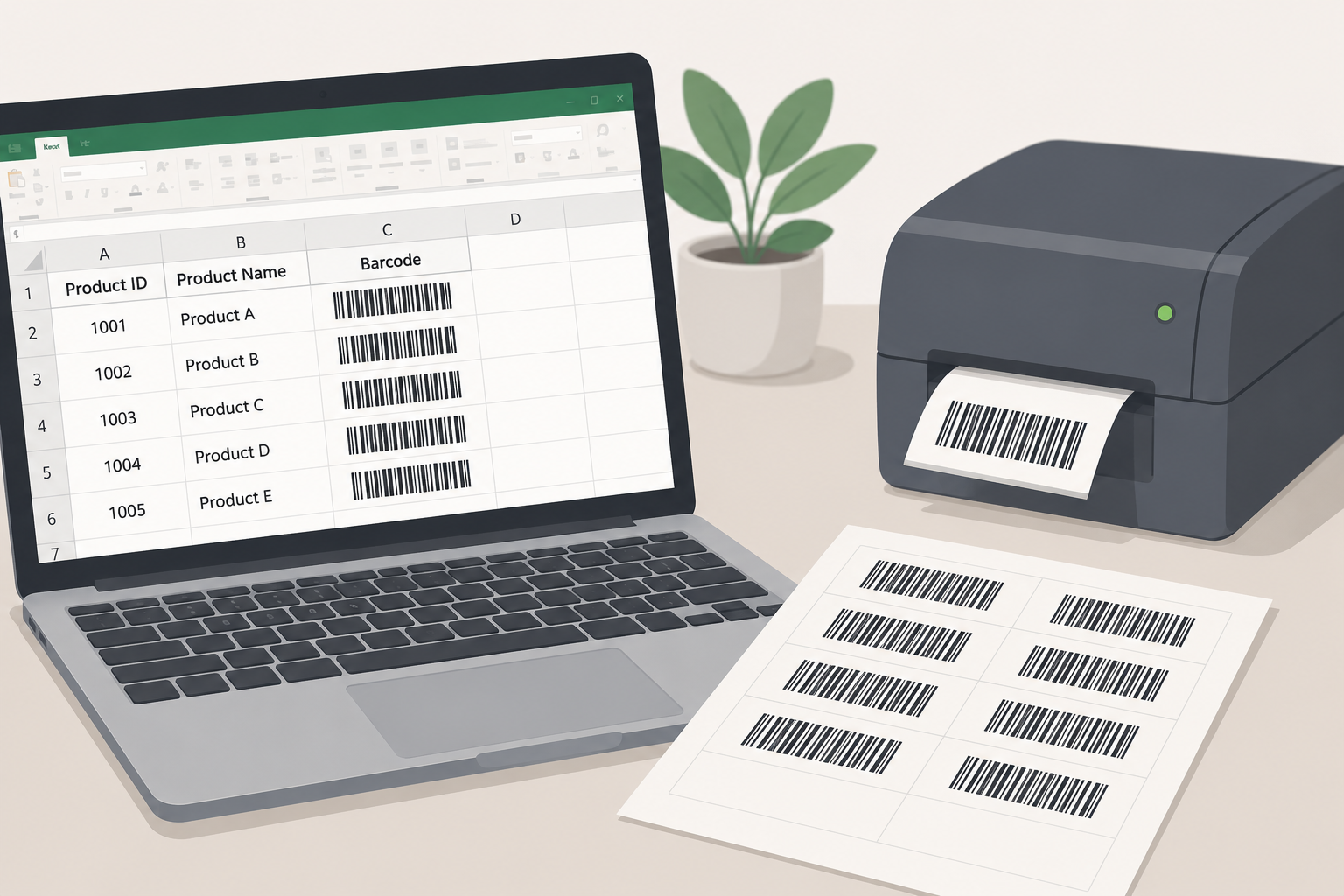
If your product list already lives in Excel, you do not need to recreate every item by hand to print barcode labels.
The simplest workflow is to keep one barcode value or SKU per spreadsheet row, copy that column into a batch barcode generator, create a printable label sheet and test one page before printing the full batch.
Excel is useful for organizing the data. It is less convenient for designing and generating hundreds of scannable labels without extra fonts, add-ins, Word mail merge fields or dedicated label software.
The quickest way to print barcode labels from Excel
- Open your product list in Excel.
- Put each SKU or barcode value in its own row.
- Remove duplicates, blank rows and formatting errors.
- Copy the barcode column.
- Paste the list into a batch barcode generator.
- Select the barcode format.
- Generate and download the printable sheet.
- Print one test page at actual size.
- Scan several labels before printing the full batch.
For internal stock, Code 128 is usually the most practical format because it supports both letters and numbers. A code such as FILTER-20X25-01 can therefore be used directly.
Use UPC-A or EAN-13 when you are working with valid retail codes. Use QR codes when the label needs to contain a URL or more information than a standard linear barcode.
Step 1: Prepare your Excel spreadsheet
Start with a clean table. Every item should have a stable identifier. The SKU column is the value that will be encoded in the barcode.
| Item name | SKU | Quantity | Location |
|---|---|---|---|
| White T-shirt, small | TS-WHITE-S | 12 | Shelf A |
| White T-shirt, medium | TS-WHITE-M | 18 | Shelf A |
| Nitrile gloves, large | GLOVE-NIT-L | 6 | Cabinet 2 |
| DeWalt battery | DW-BATT-5AH | 4 | Tool cage |
Each row should represent one product, asset or stock reference. Do not merge cells, insert headings in the middle of the list or use two different SKUs for the same item.
Keep leading zeros intact
Excel often removes leading zeros: 001245 may become 1245, which changes the barcode value. Select the SKU column, open Format Cells, choose Text, then paste or enter the values.
Avoid scientific notation
Long numbers can appear as 8.90123E+11. Formatting the column as Text before importing the data helps prevent the wrong value from being copied or exported.
Remove duplicates and blank rows
- Remove empty cells and duplicate SKUs.
- Trim spaces before and after values.
- Confirm that each product has one consistent identifier.
- Decide whether you need one label per product type or one per individual asset.
A box of 100 identical screws may need one barcode for the stock reference. Ten power drills that are checked out individually may need ten unique asset labels.
Step 2: Choose the correct barcode format
| Use case | Recommended format |
|---|---|
| Internal stock and SKUs | Code 128 |
| Simple numeric internal codes | Code 128 or Code 39 |
| Retail products in the United States | UPC-A |
| International retail products | EAN-13 |
| Tools, equipment and assets | QR code or Code 128 |
| Products with a manufacturer code | Use the existing barcode |
Code 128 for internal inventory
Code 128 is a good default for most small businesses. It supports letters, numbers and common symbols, so a SKU such as PVC-ELBOW-90-20MM can become the barcode value directly.
UPC and EAN for retail products
UPC and EAN have specific length and validation requirements. Do not generate random UPC or EAN values for products sold through supermarkets, major retailers or marketplaces. For internal stock control, your own Code 128 values are generally enough.
QR codes for tools and assets
A QR code can store more data and is easy to scan with a phone. A short unique identifier or item URL is usually easier to manage than putting the full item description inside the code.
Step 3: Generate the barcodes in bulk
Option 1: Use a batch barcode generator
Copy the SKU column from Excel, open the HomyScan free barcode generator, switch to the Batch tab and paste the list. The tool creates a printable sheet without requiring an account, Excel add-in or barcode font.
The fast workflow
Excel SKU column → copy → paste into Batch → choose Code 128 → generate label sheet → print.
Option 2: Use Excel and Word Mail Merge
Microsoft Word can use an Excel worksheet as a mail merge data source. This is useful when each label needs several fields, such as product name, SKU, price, location, barcode or company name. The setup is more involved because the data source, merge fields, label template and barcode field must all be configured correctly.
Option 3: Use label-printer software or an Excel add-in
Dedicated label software can map spreadsheet columns to text or barcode fields and send the records to a printer. This makes sense when you print frequently, use a thermal printer or need complex templates.
Step 4: Decide what should appear on the label
The barcode is for the scanner. The printed text is for the person holding the item. Useful fields include a short item name, SKU or asset number, storage location, company name, a “Property of” notice, and the barcode or QR code.
Leave out information that changes frequently, such as current quantity. A quantity printed on the label becomes wrong as soon as stock moves.
Step 5: Choose the label sheet or printer
Standard inkjet or laser printer
A regular printer works well for a few dozen or a few hundred occasional labels. Check the product number on the label pack and use its matching page layout; incorrect margins can shift every row. Use label stock designed for your printer type.
Thermal label printer
A thermal printer becomes useful when labels are printed every day, each item needs a separate label on demand, you use rolls instead of sheets, or speed matters. You do not need one merely to start using barcode inventory.
Step 6: Print one test page
Do not print 500 labels before checking the first five. Print at 100% or actual size and disable Fit to page, Shrink oversized pages and Scale to printable area.
Scan labels from the top left, center and bottom right of the sheet, plus the smallest label and longest SKU. Test with the phone or scanner employees will actually use.
Common reasons barcode labels do not scan
- The barcode was stretched. Generate it at the correct size instead of resizing it manually.
- The quiet zone was removed. Keep blank space on both sides of a linear barcode.
- The label is too small. Long values need wider barcodes; shorten internal codes or use a wider label.
- The print quality is poor. Check ink, toner and print heads, and use a high-resolution or print-ready file.
- Excel changed the value. Compare the text under the barcode with the original spreadsheet value.
- The wrong barcode type was selected. Make sure the data meets the format's length and validation rules.
Can Excel generate barcodes by itself?
Excel can store barcode values, organize inventory data and feed values into another tool. Creating the visual barcode usually requires a barcode font, add-in, external service, Word Mail Merge, label-printing software or online batch generator.
Barcode fonts can be easy to configure incorrectly because some formats require start and stop characters or check digits. A cell that looks like a barcode is not automatically a valid, scannable code.
Can you print a different number of labels for each Excel row?
Yes. Professional label software can use a “Labels needed” column to decide how many copies to print. Other tools require you to duplicate each SKU in the pasted list.
For individually tracked assets, each label should normally have a unique identifier. Printing ten copies of the same asset code would make ten different tools appear to be the same tool.
Can you scan barcodes back into Excel?
Most USB barcode scanners behave like keyboards: the scanner types the value into the selected Excel cell, often followed by Enter. For basic counts that can be enough, but formulas, lookup tables or macros are still needed to decide what should happen after the scan.
For a small one-person inventory, Excel may be sufficient. Once several people scan stock, move equipment or work from different locations, an inventory app is easier to keep consistent.
From printed labels to a working inventory system
Printing the label is only the first half of the job. A barcode should connect to a record containing the item name, quantity, location, minimum stock level, photos, check-in or checkout status, and movement history.
- Clean the spreadsheet.
- Generate the barcode labels in bulk.
- Print and attach them.
- Import the inventory.
- Scan labels during stock movements and counts.
Turn your Excel list into labels you can scan
Generate the labels for free, then use HomyScan to keep the inventory behind them accurate.
- Generate Code 128, EAN, UPC and QR codes in batches
- Print ready-to-use label sheets
- Scan labels with any compatible phone
- Import your existing inventory spreadsheet
Frequently asked questions
How do I turn an Excel column into barcodes?
Place one SKU or barcode value in each row, copy the column and paste it into a batch barcode generator. Select the correct format, then create and print the label sheet.
Can I print barcode labels from Excel for free?
Yes. You can use your Excel data with a free batch generator or configure Word Mail Merge. You still need a printer and compatible label sheets.
Do I need a barcode font in Excel?
No. A batch generator can turn your spreadsheet values into printable codes without installing a font.
Which barcode format is best for Excel inventory?
Code 128 is a good default for internal inventory because it accepts letters and numbers. Use valid UPC or EAN codes for retail products and QR codes for URLs or asset records.
Can I use my existing SKUs as barcode values?
Yes, provided each SKU is unique and uses characters supported by the selected format. Code 128 supports most common alphanumeric SKU structures.
Can I use a normal printer for barcode labels?
Yes. A standard laser or inkjet printer with compatible label sheets is enough for small batches. Test alignment and scan quality before printing the full list.
Do I need to buy official barcodes?
Not for internal inventory. Official GS1 identifiers matter when products must be recognized across retailers and external supply chains. Internal labels can use your own identifiers.
Can a phone scan the labels?
Yes. Modern phones can scan common barcode and QR formats through a compatible inventory application.